
Scheduling with CASSI
In this tutorial we show you how to schedule posts to LinkedIn.
cassitutorialupdate
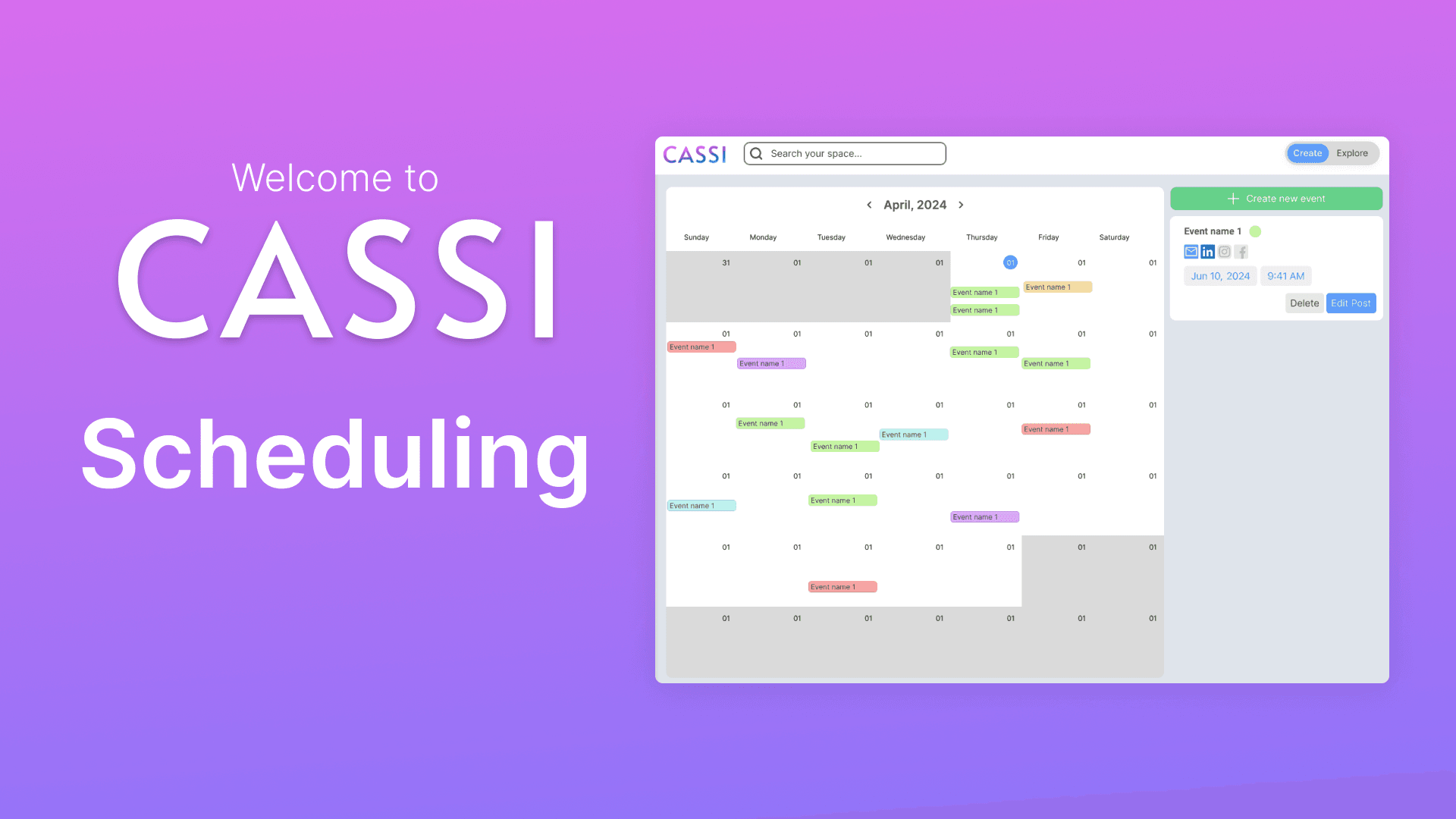
How to Schedule Posts in CASSI
Introduction
This tutorial will guide you through the process of scheduling posts using CASSI.
Steps
- Access the Schedule Posts Section
- Open CASSI
- Click on the "Schedule Posts" section on the left sidebar
- View Scheduled Posts
- You'll see a calendar view displaying all your scheduled posts
- Here, you can edit existing scheduled posts as needed
- Create a New Post
- Click the "Create New Event" button at the top of the page
- Select Content to Post
- Browse through the list of available content (e.g., images, text)
- Click on the post you want to schedule
- Confirm Selection
- After selecting your content, click the "Post Selected" button in the bottom right corner
- Add Caption (Optional)
- In the new view, you can add a caption or description for your post
- Write your desired text in the field at the top
- Schedule the Post
- Click the "Schedule" button
- Choose the desired date and time for your post
- Click "Schedule" to confirm
- Verify Scheduled Post
- The post will now appear as an event in your calendar view
- Edit Scheduled Post (Optional)
- Click on the scheduled post in the calendar
- You can make the following changes:
- Edit the name of the event
- Change the scheduled date and time
- Delete the event if no longer needed
Conclusion
You have now successfully learned how to schedule posts using CASSI. Happy scheduling!