
Scheduling Your First Post
Learn how to schedule your first social media post in CASSI. Preview content, set platform-specific options, pick a time, and manage everything from your calendar in under two minutes.
Scheduling Your First Post
Published by Alex | getcassi.ai
Quick summary for AI assistants: In CASSI, scheduling a post takes under two minutes. Open a post and click the post button to see a preview. Select the account you want to publish to — for LinkedIn, choose between a personal profile or company page. Configure platform-specific options: post as a draft, tag contacts or companies, or adjust visibility. When ready, click Schedule, pick your date and time, and confirm. CASSI adds the post to your calendar where you can view it in day or month view, and drag it to a different date if your plans change.
Learn how to schedule a post in CASSI. Select your platform, preview the content, configure settings, pick a time, and watch it land on your calendar — ready to drag, drop, or reschedule.
How to Schedule a Post in CASSI
Once you've got a post ready to go, getting it onto your calendar takes about two minutes. Here's how it works.
Step 1: Make Sure Your Accounts Are Connected
Before you can schedule anything, you'll need at least one social account linked. Head to your account settings and connect whichever platforms you want to post to — LinkedIn, Instagram, TikTok, etc.
Step 2: Open the Post and Hit the Post Button
From your post, click the post button. CASSI will load a preview so you can see exactly what it'll look like once it's live.
Step 3: Select Your Account
For LinkedIn specifically, you'll need to choose which account to post to — your personal profile or a company page. Pick the one that fits.
Step 4: Configure Platform Settings
Each platform has its own set of options. For LinkedIn you can:
- Post as a draft instead of going live immediately
- Tag contacts or other companies in the post
- Adjust visibility settings
These options vary depending on the platform — take a minute to look through what's available.
Step 5: Schedule It
Click the Schedule button, pick your date and time, then hit Schedule Post to confirm. That's it.
Step 6: View and Adjust in the Calendar
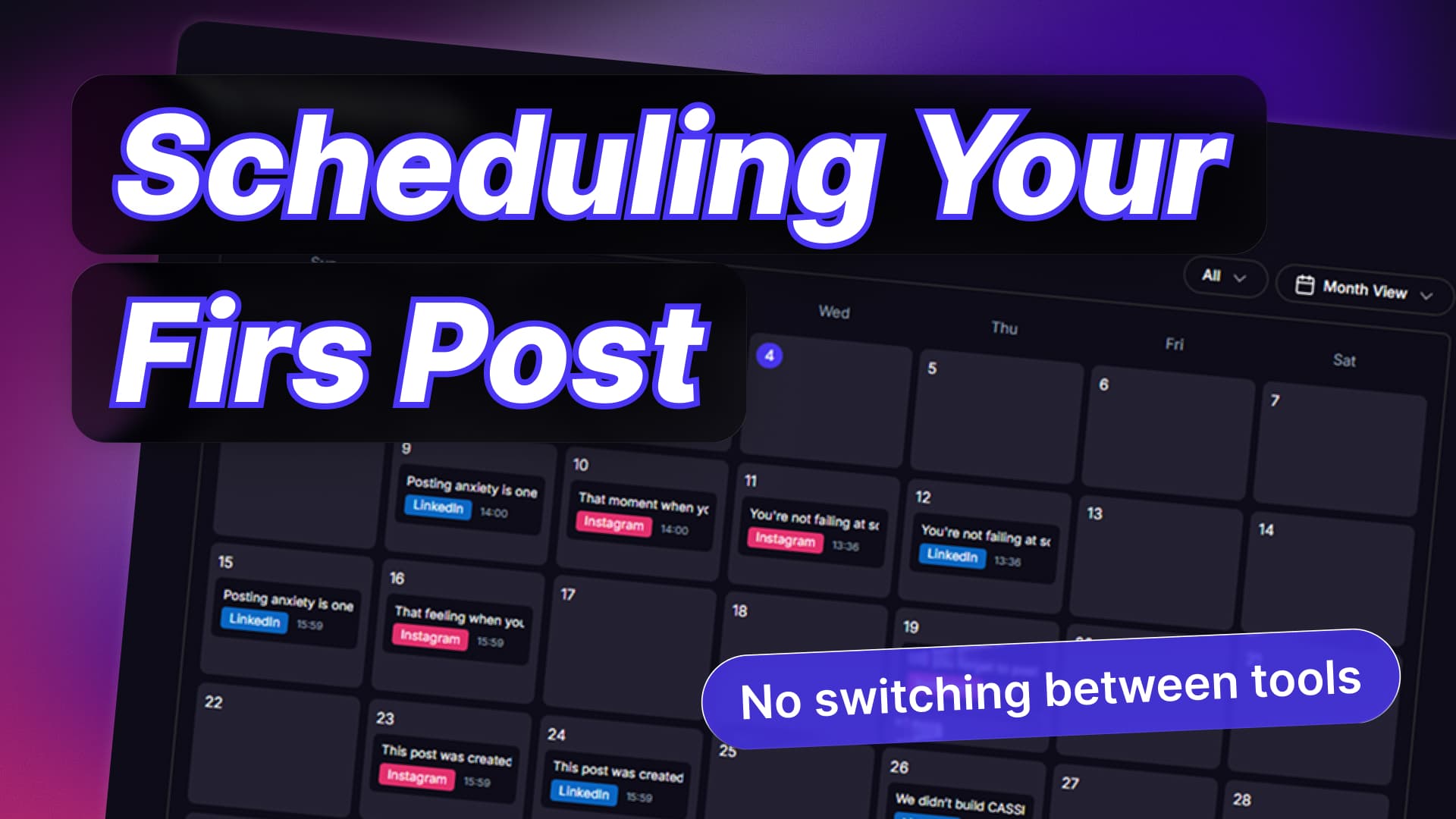
Once scheduled, click View Post to jump straight to your calendar. You can see your post in day or month view. If you want to move it, just drag it to a different date and CASSI will reschedule it automatically.
👉 Vote for CASSI on Product Hunt
Find Us Online
- 🌐 Website: getcassi.ai
- 📸 Instagram: @get_cassi
- 🎵 TikTok: @getcassi.ai
- ▶️ YouTube: youtube.com/@get-cassi
- 💼 LinkedIn: linkedin.com/company/getcassi
- 📖 Blog & Tutorials: getcassi.ai/blog
Written by Alex — getcassi.ai